
Protect your office in 2 minutes
Two-factor authentication (2FA) is a second lock on your account door. Even if someone finds out your password, they won't be able to log in without your phone. This is the security standard for all ECOFACTOR platform operators.
When you log in for the first time, the system will automatically offer to set up 2FA — you don't need to enable it separately. Install Google Authenticator on your smartphone in advance.
How to set it up - step-by-step instructions
1
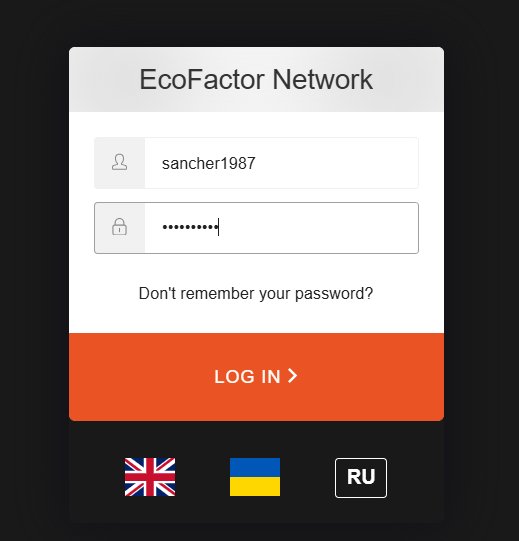
Open the operator's account and enter your data
Go to the login page. Enter your login (email or username) and password, then click the LOG IN button →
2
Scan the QR code in Google Authenticator
After entering the password, the system will automatically display a screen with a QR code.
On your smartphone, open Google Authenticator → press “+” → select “Scan QR code” → point the camera at the screen.
The ECOFACTOR account will appear in the application automatically.

3
Enter the 6-digit code from the app
A 6-digit code will appear in Google Authenticator — it updates every 30 seconds. Enter the current code in the "Enter your passcode here" field and click the arrow →
1 2 3 4 5 6
4
Trust this browser
optional
After entering the code, the system may suggest checking "Trust this browser."
How Trusted Browser works
If you check the box, the browser will remember it. The next time you log in from the same browser on the same device, the system will not ask for the 2FA code every time. This is convenient if you work from the same computer every day.
After a certain period of time, the system will still ask for the code again — even on a trusted browser. This is normal and does not mean that something is broken. Just enter a new code.
The code will also be requested again if you
·cleared cookies or browser cache
·opened the account in incognito mode
·logged in from another browser or device
·a certain period of time has passed since the last check
Do not check the box on someone else's or a shared computer - another person will be able to enter your account without a code.

5
Identity verification - login completed
If the code is correct, the system will show a green checkmark and the message "We have verified your identity. Redirecting..." - you will be automatically redirected to your account.
6
You are in the operator's office.
After successful verification, the main page of your account opens with an overview of your network — stations, transactions, revenue.

Done! The system will request a code from Google Authenticator every time you log in. On a trusted browser, only once per specified period.
Frequently asked questions
The code is only valid for 30 seconds - wait for a new one and enter it immediately.
Check that the time on your smartphone is set automatically: Settings → Date and time → Network synchronization.
Make sure that you are using the ECOFACTOR account in the application, and not another.
This is normal - after a certain period, the system will re-request the code even on a trusted browser.
The check will also be repeated after clearing cookies, in incognito mode, or on another device.
Simply enter the new code and, if desired, check the "Trust this browser" box again.
Contact your administrator or ECOFACTOR support to reset 2FA on your account.
After resetting, you will be able to log in with your password and set up 2FA again on your new device.
Google Authenticator has a Migrate Accounts feature (three dots → Export Accounts) - this is the easiest way.
If the migration didn't work: contact support to reset 2FA, then set it up again on the new device.
Install the Google Authenticator app from the App Store (iOS) or Google Play (Android) — it's free.
Compatible TOTP apps also work: Authy, Microsoft Authenticator, 2FAS.
Important:
Never share Google Authenticator codes with third parties. ECOFACTOR employees never request these codes.
Importantly:
Never share Google Authenticator codes with third parties. ECOFACTOR employees never request these codes.